
🎚️ High-Quality Export Guide: Best Settings for MIDI to MP3/WAV
One of the most common complaints about converting MIDI files to audio is: "Why does it sound like a cheap 90s video game?"
The truth is, MIDI is just data (sheet music); it doesn't contain any sound itself. The quality of the final MP3 depends entirely on the virtual instruments and audio settings used during conversion.
With the latest update to MIDI Toolbox Converter, you now have access to pro-level features like Custom SoundFonts, Normalization, and Sample Rate selection.
Here is your guide to choosing the best settings for a studio-quality sound.
1. The Secret to Realism: SoundFonts (.sf2) 🎻
The single biggest factor in audio quality is the SoundFont. A SoundFont is a file containing the actual audio samples (recordings) of real pianos, violins, and drums.
- Default (Good): By default, MIDI Toolbox uses GeneralUser GS, a balanced, high-quality library that sounds much better than standard browser sounds.
- Custom (Best): For specific needs (e.g., a realistic Orchestral sound or a specialized Jazz Piano), you can now use your own libraries!
How to use Custom SoundFonts:
- In the Converter, look for the "SoundFont" dropdown.
- Select "Upload Custom SoundFont (.sf2)".
- Select any
.sf2file from your computer.
🔒 Privacy Note: Because our tool runs locally, your large SoundFont files are loaded directly into your browser's memory. They are NEVER uploaded to our servers.

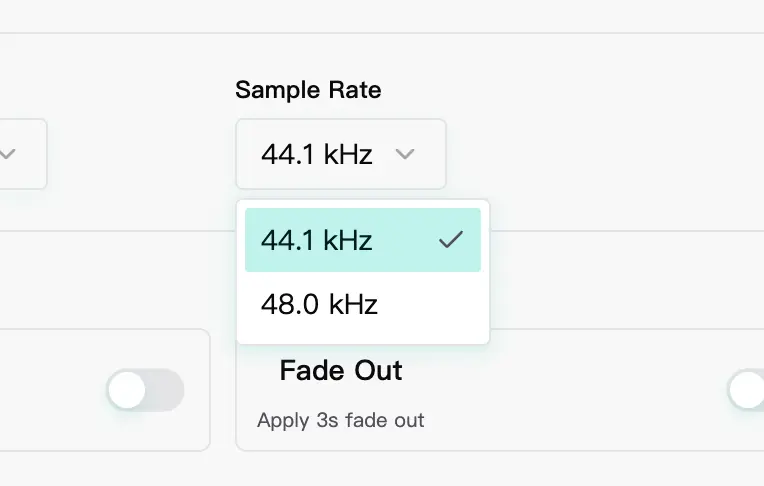
2. Sample Rate: 44.1kHz vs 48kHz 📉
You will see a new dropdown for Sample Rate. Which one should you choose?
- Choose 44.1 kHz (Standard):
- Best for: Listening to music on your phone, Spotify, Apple Music, or CD production.
- Why: This is the industry standard for consumer audio.
- Choose 48.0 kHz (Video):
- Best for: Background music for YouTube videos, TikTok, or film editing.
- Why: Video standard is 48kHz. Matching this prevents audio "drift" or sync issues in your video editor.
Rule of Thumb: If you are just listening, pick 44.1kHz. If you are making a video, pick 48kHz.
3. Advanced Options: Polish Your Track ✨
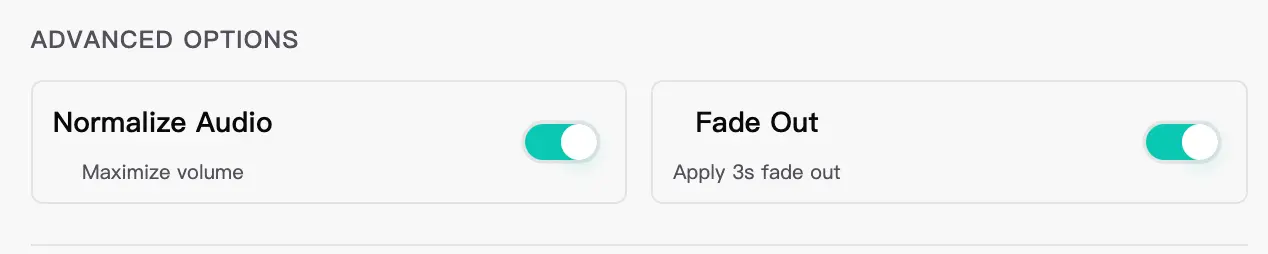
We have added an "Advanced Options" section to solve two annoying problems: quiet audio and abrupt endings.
✅ Normalize (Make it Loud)
MIDI files often sound very quiet compared to modern pop songs.
- Enable "Normalize": Our algorithm scans your entire track and boosts the maximum volume to -0.2dB (just below the distortion limit).
- Result: Your track will sound full, loud, and punchy without any clipping or distortion.
✅ Fade Out (Smooth Ending)
Does your MIDI file cut off instantly at the end? It sounds unnatural.
- Enable "Fade Out": This automatically applies a linear fade-out effect to the last 3 seconds of your audio.
- Result: A professional, radio-style ending.
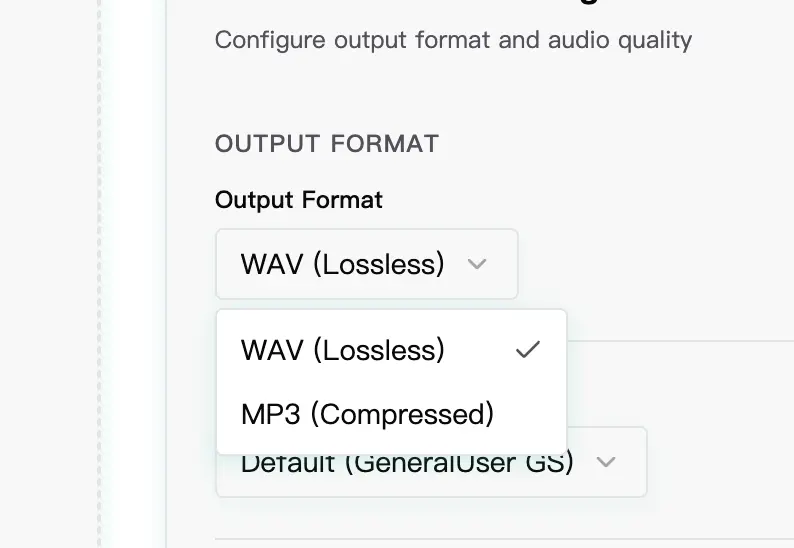
4. Format: MP3 vs WAV
Finally, you need to choose your output format.
- MP3 (High Quality): Great for sharing via email or WhatsApp. Our converter uses high-bitrate encoding to minimize quality loss.
- WAV (Lossless): The best possible quality. The file size will be larger (about 10MB per minute), but it preserves every detail. Use this if you plan to import the audio into a DAW (like Logic or Ableton) for further editing.
🚀 Summary: The "Pro" Preset
Want the best results quickly? Use these settings:
- SoundFont: Upload a high-quality Piano or Orchestral
.sf2(or use our default). - Sample Rate: 44.1kHz.
- Advanced: Turn ON Normalize and Fade Out.
- Format: MP3 (for sharing) or WAV (for editing).
Ready to hear the difference?